Making a PWA installable the right way: the complete guide
Manifest, HTTPS, icons, service worker: the installability criteria of a PWA, the most frequent mistakes and how to check that everything is in order.
By Kra Ange Fabien Jephté (kra Axiom) · Published on 24 September 2026 · 2 min read
A Progressive Web App is "installable" when the browser agrees to offer it on the home screen or in the app launcher. It is also the first condition for turning it into an Android application: a badly configured PWA causes problems long before the build.
The installability criteria
The exact rules vary by browser and version, but the foundation is stable:
- HTTPS with a valid certificate, on every useful page (localhost is tolerated during development).
- A web manifest linked from the page (
<link rel="manifest" href="/manifest.json">). - A name (
nameorshort_name), astart_urland adisplayofstandalone,fullscreenorminimal-ui. - Icons of at least 192 px and 512 px.
Depending on the browser and its version, a service worker may or may not be required for installation. It remains essential for offline use: add one.
A minimal manifest that works
{
  "name": "My application",
  "short_name": "MyApp",
  "start_url": "/?source=pwa",
  "scope": "/",
  "display": "standalone",
  "background_color": "#ffffff",
  "theme_color": "#c2410c",
  "icons": [
    { "src": "/icons/icon-192.png", "sizes": "192x192", "type": "image/png" },
    { "src": "/icons/icon-512.png", "sizes": "512x512", "type": "image/png" },
    { "src": "/icons/maskable-512.png", "sizes": "512x512", "type": "image/png", "purpose": "maskable" }
  ]
}
The most frequent mistakes
- An icon declared 512×512 that is not. The
sizesfield is a declaration, not a check: open the file and verify its real dimensions. A non-square icon is refused by most app generation tools. - A
start_urlthat redirects to another origin or to a login page: the app starts on an unexpected page. - A manifest served with the wrong type or blocked by an overly strict content security policy (CSP).
- No
maskableicon. On Android, the icon is then placed in a circle or rounded square with white margins. - A
scopethat is too narrow: links outside the scope open in the browser.
How to check
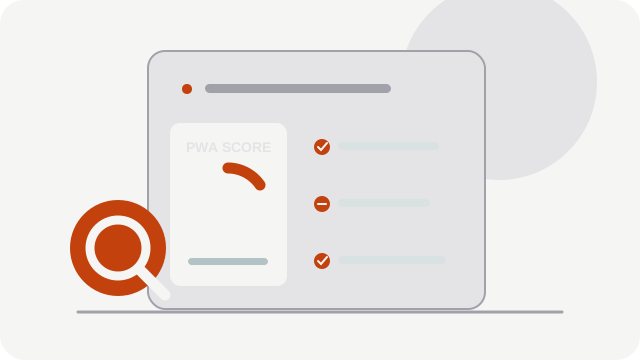
In Chrome, the Application tab of the developer tools shows the manifest, its errors, the icons and the service worker's state. Lighthouse produces an installability report.
With PWA2APP, the analyzer applies versioned technical rules to your PWA before any build. Rules PWA-MAN-001 to PWA-MAN-005 check the manifest, PWA-ICON-001 and PWA-ICON-002 the icons, PWA-SW-001 the service worker and PWA-VP-001 the viewport tag. Each rule has its page in the documentation, with its recommendation.
Key takeaways
- Check the real dimensions of your icons.
- Keep a stable
start_url, on your origin. - Add a
maskableicon and a service worker. - Check everything before thinking about the native application.
Risks detected according to the technical rules currently configured: a clean report is not a guarantee of acceptance by a store, whose review remains independent.